AI Connections reference
Set up an AI assistant with Options Matrix Pro
How to connect Claude, ChatGPT or another MCP assistant, what its 39 tools do, which permissions it can hold, the rate limits, and how to disconnect it.
Last updated
What AI Connections is
AI Connections lets an AI assistant use your own Options Matrix Pro account through MCP, the Model Context Protocol. The assistant can read your watchlists, saved trades and market data, run your saved Short Options Scanner settings and prepare changes for you to confirm. OMP does the options calculations. The assistant helps you work through the results, and you decide what to save.
It is part of the All Access plan and is included during the seven-day trial. See Pricing for plans, or the AI Connections overview for example workflows.
- Server URL
- https://www.optionsmatrixpro.com/mcp
- Protocol
- Remote MCP over Streamable HTTP with OAuth 2.0 (authorization code with PKCE). Requests are limited to 512 KiB.
Set up an assistant
Every assistant follows the same two steps: add OMP as a remote MCP server, then sign in to OMP and approve access. OMP's own setup page, under Account, then AI Connections, lists the assistants enabled for your account and gives you the exact text to copy, including the client ID and callback address your assistant needs.
OAuth is the sign-in method: you approve the connection on an OMP page, and the assistant never sees your password. PKCE and client registration are standard security steps that your assistant handles itself, so you will meet those names only in the settings of some clients.
Claude (web and Desktop)
- In OMP, open Account, then AI Connections, choose Claude and copy the setup text.
- In Claude, open Customize, then Connectors, then Add custom connector. On Team and Enterprise plans an Owner first adds the connector under Organization settings, then Connectors.
- Enter the server URL
https://www.optionsmatrixpro.com/mcp. Under Advanced settings, enter the OAuth client ID from the setup text and leave the client secret empty. - Click Connect on the connector. The OMP sign-in and permissions screens open (shown below).
ChatGPT
- In ChatGPT, open Plugins, then +, then Add custom MCP server. Name it Options Matrix Pro and enter
https://www.optionsmatrixpro.com/mcp. Availability depends on your ChatGPT plan and workspace settings. - Choose OAuth with Client ID Metadata Documents (CIMD), let it discover OMP's settings and leave static credentials empty.
- Create the plugin, install it from Personal plugins, then open it and click Connect. In the ChatGPT dialog click Continue to OMP.
Claude Code and Codex
Both add OMP from the command line. The setup text in your OMP account fills in your client ID and callback port. The commands have this shape (each backslash continues the command on the next line; type it on one line if your shell does not accept that):
claude mcp add --transport http --scope user \
  --client-id "<client ID>" \
  omp https://www.optionsmatrixpro.com/mcp
codex mcp add omp \
--url "https://www.optionsmatrixpro.com/mcp" \
--oauth-client-id "<client ID>" \
--oauth-resource "https://www.optionsmatrixpro.com/mcp"In Claude Code, run /mcp to sign in. In Codex, run codex mcp login omp if sign-in did not open when you added the server.
Other MCP clients
Any client that supports remote MCP servers with OAuth can connect. Add https://www.optionsmatrixpro.com/mcp as a Streamable HTTP server, leave the client ID and secret empty, and let the client register itself using Dynamic Client Registration or a Client ID Metadata Document. OMP accepts public clients only and requires PKCE. Because OMP has not verified a self-registered assistant, the consent screen shows a warning.
Sign in and approve
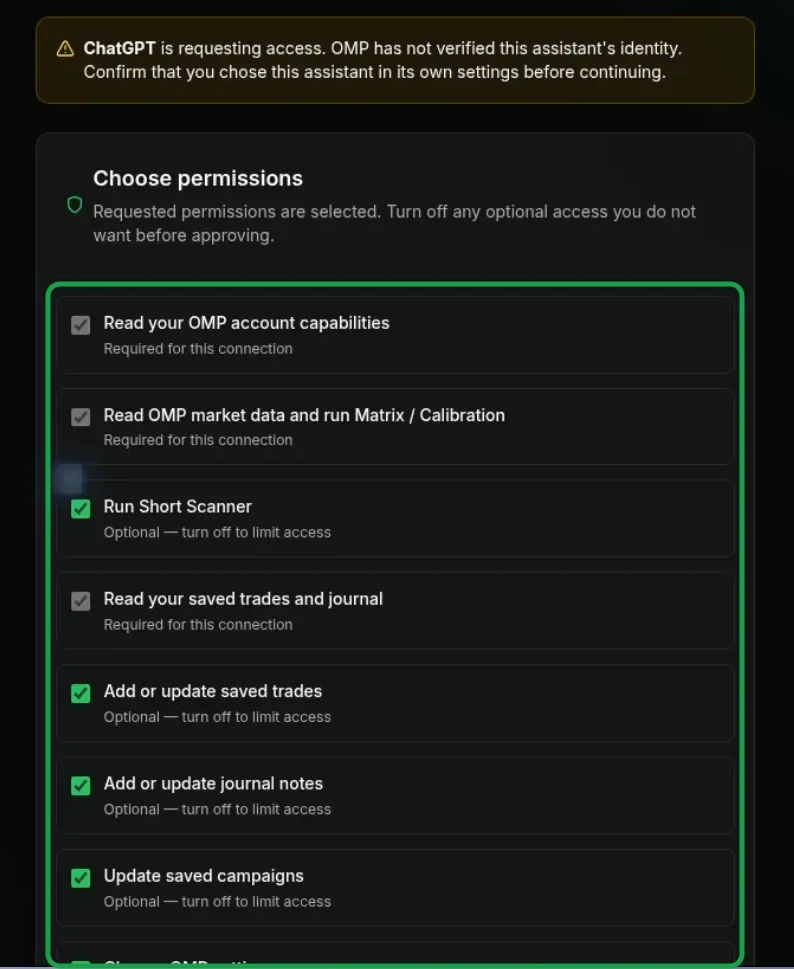
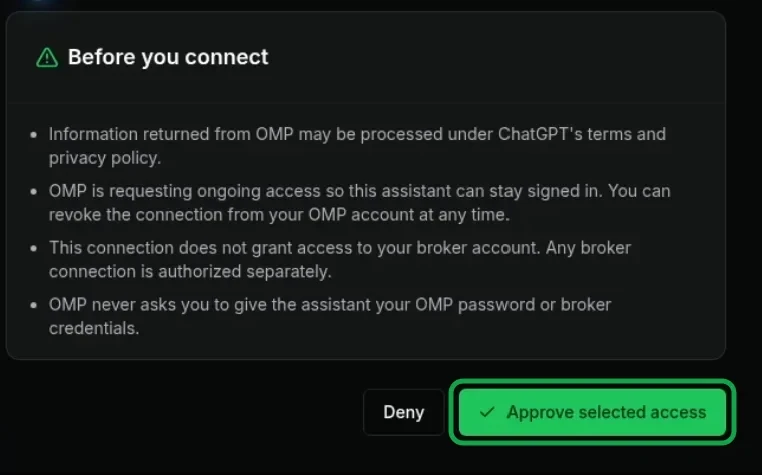
The assistant sends you to an OMP page. Sign in with your own OMP email and password, never by pasting them into the assistant. The consent screen lists every permission the assistant asks for. The three read permissions are required. Untick any optional permission you do not want to grant, then click Approve selected access.
To check the connection, start a new chat and ask: “What can my Options Matrix Pro connection do, and what are my current limits?” The assistant should call omp_get_capabilities and list your plan features, permissions and limits.
Tools
The server offers 39 tools in 8 groups. Each is labelled by what it can do to your data, and the permission it needs is shown under it. Tools that read are marked Reads only, tools that create a record or start work are marked Adds records or starts work, and tools that apply a confirmed change, cancel a job or replace stored data are marked Changes or cancels. Whether a tool is usable also depends on your plan and on the permissions you approved.
Account and help
What the connection can do for your plan, and where your settings stand.
omp_get_capabilitiesReads onlyShows the features your plan includes, the permissions this connection holds and your current limits.
Permission:
omp:profile:readomp_get_helpReads onlyReturns written guidance on OMP workflows, limits and safety. It reads no account data.
Permission:
omp:profile:readomp_list_strategiesReads onlyLists the Visualizer templates and Short Scanner strategies your plan includes.
Permission:
omp:profile:readomp_get_preferencesReads onlyReads one section of your saved settings and its revision.
Permission:
omp:profile:readomp_get_watchlistsReads onlyReads your four Matrix watchlists and your symbol allowance.
Permission:
omp:market:read
Market data
Licensed option market data. It comes from ThetaData, with earnings dates from MarketData.app.
omp_get_market_contextReads onlySpot price, listed expirations, next earnings date, implied volatility and the expected move for up to three expiries.
Permission:
omp:market:readomp_get_option_quotesReads onlyBid, ask, delta, implied volatility, open interest and volume for chosen strikes, a strike range or up to five vertical spreads, with breakeven and modelled probability of profit.
Permission:
omp:market:readomp_get_matrixReads onlyOne page of the Options Matrix for one symbol: contracts compared on Monthly Yield %, breakeven, probability of profit and expiry.
Permission:
omp:market:readomp_get_historical_referenceReads onlyAn end-of-day option reference price for a past date. It is not evidence of a real fill.
Permission:
omp:market:read
Scans and jobs
Run your saved Short Options Scanner settings and read results. Starting a scan needs no separate confirmation. Advanced Scanner runs cannot be started from an assistant.
omp_start_scanAdds records or starts workStarts your saved Short Options Scanner run for cash-secured put and covered call candidates.
Permission:
omp:scan:runomp_start_calibrationAdds records or starts workStarts a calibration job that proposes Short Scanner settings for a symbol and expiry. It saves nothing.
Permission:
omp:scan:runomp_get_latest_short_scanReads onlyReads your most recent Short Scanner results, whether the scan ran on the website or through an assistant. It never starts a scan.
Permission:
omp:scan:run(it reads scan results, so it needs Run Short Scanner)omp_list_advanced_scansReads onlyLists your existing Advanced Scanner jobs, newest first.
Permission:
omp:market:readomp_get_jobReads onlyReads the status of one scan or calibration job.
No extra permission: needs an active connection and a job you own
omp_get_job_resultsReads onlyReads stored results and progress for a Short, calibration or existing Advanced Scanner job, with filters for Advanced results.
No extra permission: needs an active connection and a job you own
omp_cancel_jobChanges or cancelsCancels one of your running jobs.
No extra permission: needs an active connection and a job you own
Modelling and AI Analyst
Model a position, or use the OMP AI Analyst, which draws on your monthly allowance.
omp_model_strategyReads onlyModels explicit option legs across a grid of prices and dates and returns modelled profit and loss.
Permission:
omp:market:readomp_request_ai_analysisAdds records or starts workRuns the OMP AI Analyst on a setup and counts against your monthly AI Analyst allowance.
Permission:
omp:ai:invoke
Saved trades and campaigns
Your own records, read with the trades permission. Repricing writes to your saved trades with the trades write permission and needs no separate confirmation.
omp_list_accountsReads onlyLists your OMP trade accounts and any reviewed broker bindings.
Permission:
omp:trades:readomp_list_saved_tradesReads onlyLists your saved trades and their review flags.
Permission:
omp:trades:readomp_get_saved_tradeReads onlyReads one saved trade, including permitted journal and valuation fields.
Permission:
omp:trades:readomp_get_saved_trade_historyReads onlyReads corrected entry and closing prices, commissions and trading dates for your saved trades.
Permission:
omp:trades:readomp_list_campaignsReads onlyLists your trade campaigns.
Permission:
omp:trades:readomp_get_campaignReads onlyReads one campaign and its linked trades.
Permission:
omp:trades:readomp_analyze_covered_call_capacityReads onlyWorks out, account by account, how many covered calls your recorded shares can cover.
Permission:
omp:trades:readomp_refresh_saved_trade_marksChanges or cancelsStarts a job that reprices your saved trades and replaces their stored valuations. It does not synchronise with a broker.
Permission:
omp:trades:write
Changes you confirm
Changes to your existing saved trades, journal notes, campaigns, trade accounts, watchlists and settings are prepared first, shown to you, and applied only after you confirm that exact proposal.
omp_prepare_changeAdds records or starts workPrepares a change to saved trades, journals, campaigns, accounts, watchlists or settings and returns a before and after review. Nothing is saved yet.
Permission:
omp:profile:read, plus the write permission for the record being changedomp_get_approval_statusReads onlyReads the status of a prepared change that is waiting for your confirmation.
Permission:
omp:profile:readomp_commit_changeChanges or cancelsApplies a prepared change once you have confirmed it.
Permission:
omp:profile:read, plus the write permission for the record being changedomp_get_operation_receiptReads onlyReads the outcome of an earlier write by its receipt.
Permission:
omp:profile:read
Broker records
Records your assistant relays from your broker are staged and compared with your saved trades. OMP does not connect to your broker. Staging adds records without a separate confirmation; applying a reconciliation needs your confirmation.
omp_create_import_batchAdds records or starts workCreates a staging batch for broker records that your assistant relays or that you supply as a file.
Permission:
omp:broker-import:writeomp_stage_broker_recordsAdds records or starts workAdds up to 100 records to a staging batch. It changes no saved trade.
Permission:
omp:broker-import:writeomp_preview_reconciliationAdds records or starts workCompares staged records with your saved trades and lists the differences.
Permission:
omp:broker-import:writeomp_get_import_batchReads onlyReads the progress and review status of an import batch.
Permission:
omp:trades:readomp_commit_reconciliationChanges or cancelsApplies a previewed reconciliation once you have confirmed it.
Permission:
omp:broker-import:write,omp:trades:write
Trade plans (records, not orders)
A trade plan is a saved instruction for you to review. Saving one adds a record; releasing it needs your confirmation. OMP places no orders and sends nothing to a broker.
omp_prepare_trade_planAdds records or starts workSaves a proposed covered-call limit instruction for your review.
Permission:
omp:trade-plan:writeomp_get_trade_planReads onlyReads the status and fields of a saved trade plan.
Permission:
omp:trades:readomp_release_trade_planChanges or cancelsReleases a prepared plan once you have confirmed it. This records the plan; it places no order.
Permission:
omp:trade-plan:writeomp_record_broker_handoffChanges or cancelsRecords a broker instruction reference, or an unknown outcome, that your assistant reports from your own broker connection. It is never treated as a fill.
Permission:
omp:trade-plan:write
Permissions
OMP asks for permissions in 11 scopes. The consent screen shows each one in plain words, and you can untick the optional ones. Every request is also checked against a live grant that belongs to you. A tool or change that needs a permission you did not approve is refused.
omp:profile:readRequiredRead your OMP account capabilities
Needed by 8 tools.
omp:market:readRequiredRead OMP market data and run Matrix
Needed by 7 tools.
omp:scan:runOptionalRun Short Scanner
Needed by 3 tools.
omp:trades:readRequiredRead your saved trades and journal
Needed by 9 tools.
omp:trades:writeOptionalAdd or update saved trades
Needed by 2 tools. Allows prepared changes to:
- Create or edit saved trades and drafts
- Record assignments, expiries and closes
- Link trades to a campaign
- Archive or replace a saved trade
- Create or revoke a public trade link
- Reconcile a saved trade with broker records
- Create or rename a trade account
- Delete a trade account
omp:journal:writeOptionalAdd or update journal notes
Needed by no tool directly. Allows prepared changes to:
- Edit journal notes
omp:campaigns:writeOptionalUpdate saved campaigns
Needed by no tool directly. Allows prepared changes to:
- Create or edit a campaign
- Link trades to a campaign
omp:settings:writeOptionalChange OMP settings
Needed by no tool directly. Allows prepared changes to:
- Edit watchlists
- Edit settings
omp:broker-import:writeOptionalImport broker records and reconcile saved trades after your review
Needed by 4 tools. Allows prepared changes to:
- Bind a broker account label
- Reconcile a saved trade with broker records
omp:trade-plan:writeOptionalPrepare broker instructions for your review (no order execution)
Needed by 3 tools.
omp:ai:invokeOptionalUse OMP AI Analyst (optional; uses your OMP AI allowance)
Needed by 1 tool.
The tools omp_get_job, omp_get_job_results and omp_cancel_job need no permission of their own. They require an active connection and a job that belongs to you.
Limits
Limits apply to your OMP account as a whole, so every assistant you connect shares one allowance. Overall, an account can make 120 requests a minute and 1,800 an hour. These per-activity limits sit inside that.
| Activity | Per minute | Per hour |
|---|---|---|
| Matrix (a new request)at least 60 seconds apart | 1 | 60 |
| Short Options Scanner (a new run)at least 60 seconds apart | 1 | 10 |
| Calibration (a new run)at least 60 seconds apart | 1 | 10 |
| Saved-trade repricing jobat least 60 seconds apart | 1 | 10 |
| OMP AI Analystat least 60 seconds apart | 1 | 10 |
| Market context, quotes and history | 6 | 120 |
| Strategy modelling | 6 | 120 |
| Reading your records | 30 | 600 |
| Preparing and applying changes | 10 | 120 |
| Staging broker records | 30 | 600 |
| Reading scan results | 20 | 400 |
| Job statusat least 10 seconds apart | 6 | 360 |
| Cancel, receipts and approval status | 30 | 600 |
- OMP runs one heavier operation (market data, modelling, scans, repricing or AI Analyst) at a time for your account.
- A Short Scanner run covers up to 100 symbols and 200 rules. Strategy modelling takes up to 8 legs and 100 scenarios. A repricing job covers up to 25 trades, and an import batch holds up to 100 records.
- A response is capped at 512 KiB. Long results come in pages that the assistant follows with a cursor.
- Matrix snapshots are kept for 15 minutes.
- Calibration and repricing results are kept for 24 hours.
- A completed Short Scanner run is kept for 24 hours, or until 11:30 a.m. New York time on the next regular US market day if that is later. Advanced Scanner results are kept until that same time.
- A quick read of market context, the Matrix, option quotes, historical prices or strategy modelling waits up to 15 seconds when another heavy operation is running. Every other request that finds OMP busy is refused at once.
- When a limit is reached, OMP answers HTTP 429 with a
Retry-Afterheader and aretry_after_msvalue. Advanced Scanner runs cannot be started through an assistant.
Approvals and orders
Changes to your existing saved trades, journal notes, campaigns, trade accounts, watchlists and settings go through four steps, and nothing in those records changes until you confirm:
- The assistant prepares the change with
omp_prepare_change. OMP returns the exact before and after review and a digest, and saves nothing. - The assistant shows you that review in the conversation.
- You confirm it. A prepared change can be applied for 5 minutes and is refused if the record has changed since.
- The assistant applies it with
omp_commit_change, using the digest. OMP returns a receipt that can be read later.
Applying a broker-record reconciliation and releasing a trade plan follow the same prepare, show, confirm and apply pattern. Other tools act as soon as the assistant calls them, within the permission you granted: they start scans and calibration runs, reprice your saved trades (which updates their stored valuations), stage broker records, save trade plans and broker instruction references, run the AI Analyst and cancel jobs. They are marked “Adds records or starts work” or “Changes or cancels” in the tool list.
OMP places no broker orders, does not connect to your broker account and does not move money. Trade plans and broker records are saved for your review, and a broker instruction reference is never treated as a fill. Estimated probabilities and modelled returns are not guarantees, and options involve risk.
Revoking access
- Open Account, then AI Connections in OMP.
- Find the assistant in the connections list. Choose Change access to alter its permissions, or Disconnect to end the connection.
Disconnecting revokes the assistant's grant, so its next request is refused. The assistant must connect again to use OMP. A connection that goes 30 days without use expires by itself. Access tokens last one hour, and refresh tokens are replaced each time they are used.
Troubleshooting
- The OMP tools do not appear in the assistant.
- Start a new chat or session so the assistant reloads its tool list. If they are still missing, open Account, then AI Connections in OMP and check that the assistant is listed as connected.
- The sign-in page says AI Connections need All Access or an active seven-day trial.
- AI Connections is part of the All Access plan. Check your plan on the Pricing page or in Account, then reopen the connection request.
- The consent page warns that OMP has not verified the assistant.
- Assistants that register themselves are not verified by OMP. Continue only if you started the connection from that assistant. You can untick any optional permission.
- The assistant reports INSUFFICIENT_SCOPE or asks you to reconnect with more permissions.
- The action needs a permission you did not approve. Choose Change access next to the assistant in Account, then AI Connections, or disconnect and connect again with the permission ticked.
- A request fails with RATE_LIMITED or HTTP 429.
- All of your connections share one allowance. Wait for the retry time the response gives (retry_after_ms, or the Retry-After header), then repeat the same request.
- A request fails with BUSY.
- OMP runs one heavier operation at a time for your account. A quick read of market context, the Matrix, option quotes, historical prices or strategy modelling waits up to 15 seconds for it; every other request is refused at once. Let the running job finish, or cancel it, then try again.
- The assistant reports AUTH_REQUIRED or GRANT_REVOKED.
- The connection was disconnected, or it expired after 30 days without use. Connect the assistant again and approve the permissions.
- A job or older scan can no longer be read.
- Stored results are kept for a limited time. Matrix snapshots are kept for 15 minutes. Calibration and repricing results are kept for 24 hours. A completed Short Scanner run is kept for 24 hours, or until 11:30 a.m. New York time on the next regular US market day if that is later. Advanced Scanner results are kept until that same time. After that, run the scan again or ask for the latest stored scan.
- A prepared change cannot be applied (it expired or a record changed).
- A prepared change can be applied for 5 minutes after it is prepared, and it is refused if the record was edited in the meantime. Ask the assistant to prepare the change again and confirm the new review.
- The assistant cannot start an Advanced Scanner run.
- Starting, restarting and cancelling Advanced scans is not available through an assistant. Run it on the Advanced Scanner page; the assistant can then read the saved results.
Still stuck? Contact Support and include the request ID from the assistant's error message, if it shows one.
Security and privacy
Grants and tokens are stored in OMP's database, in a private schema where row-level security is on and the public, anonymous and signed-in database roles have no access. OMP checks on every request that the grant is live and belongs to you. What an assistant can read, what it can change, where your data goes and how long records are kept are set out in the AI Connections section of the Privacy Policy.
To report a security problem, follow the steps on the Security page. The contact is also published in security.txt. General questions go to support@optionsmatrixpro.com.
Frequently asked questions
Which plan do I need for AI Connections?
AI Connections is part of the All Access plan and is included during the seven-day trial. You also need an assistant that supports custom MCP connectors; the assistant provider sets its own plans and limits.
Can an assistant place trades through Options Matrix Pro?
No. OMP places no broker orders, does not connect to your broker account and does not move money. An assistant can record and review trade plans and saved trades. It changes your existing saved trades, journal notes, campaigns, trade accounts, watchlists and settings only after you confirm the exact change. It can also start scans and calibration runs, reprice your saved trades (which updates their stored valuations), stage broker records, save trade plans and broker instruction references, run the AI Analyst and cancel jobs, within the permissions you granted. None of these places an order.
What can the assistant see?
Only your own OMP data, within the permissions you approve on the consent page. The assistant provider receives the results it asks for and handles them under its own privacy policy.
How do I remove an assistant?
Open Account, then AI Connections in OMP, and choose Disconnect next to the assistant. Its next request is refused.
Does a connection give investment advice?
No. OMP returns data, scan results and modelled figures for your own decisions. Probabilities and returns are model estimates, not guarantees, and options involve risk.