AI Connections · Step 2 of 2
Bring in your broker trades
Keep your saved trades in step with your broker. Ask your AI assistant to bring them in, or upload your broker's own file in OMP. Either way, you approve every change.
Last updated
- Nothing changes until you approve. Your assistant shows you exactly what OMP would change in your saved trades. You say yes, or you don't.
- OMP never connects to your broker. It doesn't sign in to your broker account, place trades or move money.
Which should I use?
Chat with your AI assistant
- Works with all 11 brokers OMP supports.
- Quickest for everyday catch-ups, like “the last 30 days”.
- Your assistant reads your trades from your broker's own connection, or from a file you attach in the chat.
- If you attach a file, your assistant reads it before OMP sees it.
Upload your broker file in OMP
- For Interactive Brokers (IBKR) and tastytrade.
- Best for a full history, and for expiries, assignments and exercises.
- The file goes straight to OMP, not through your AI assistant.
- You still use your assistant to compare and approve.
Before you start
- Connect OMP to your AI assistant (for example ChatGPT or Claude). Follow step 1, Set up your AI assistant. AI Connections is included with All Access and the seven-day trial.
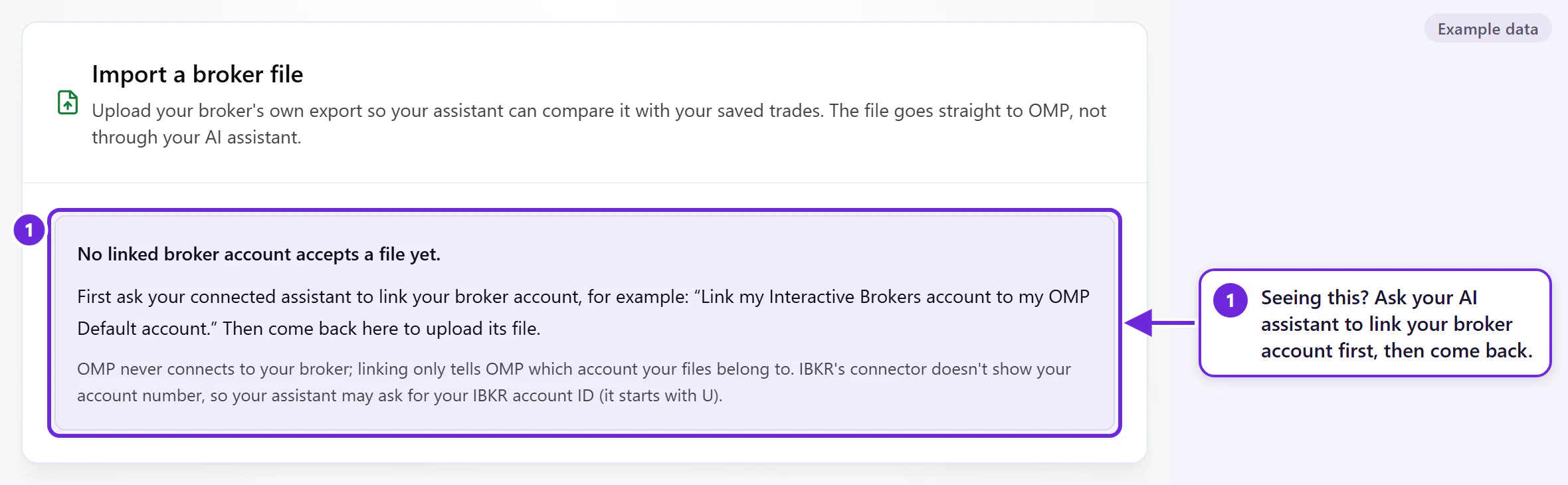
- Link your broker account once. This tells OMP which broker account your trades belong to, and which OMP account to save them in. You do it in the chat. See step A1.
Route A: chat with your AI assistant
You type normal sentences. Your assistant does the work and shows you what OMP would change. The pictures below are example conversations with made-up data. Your assistant's screen will look different.
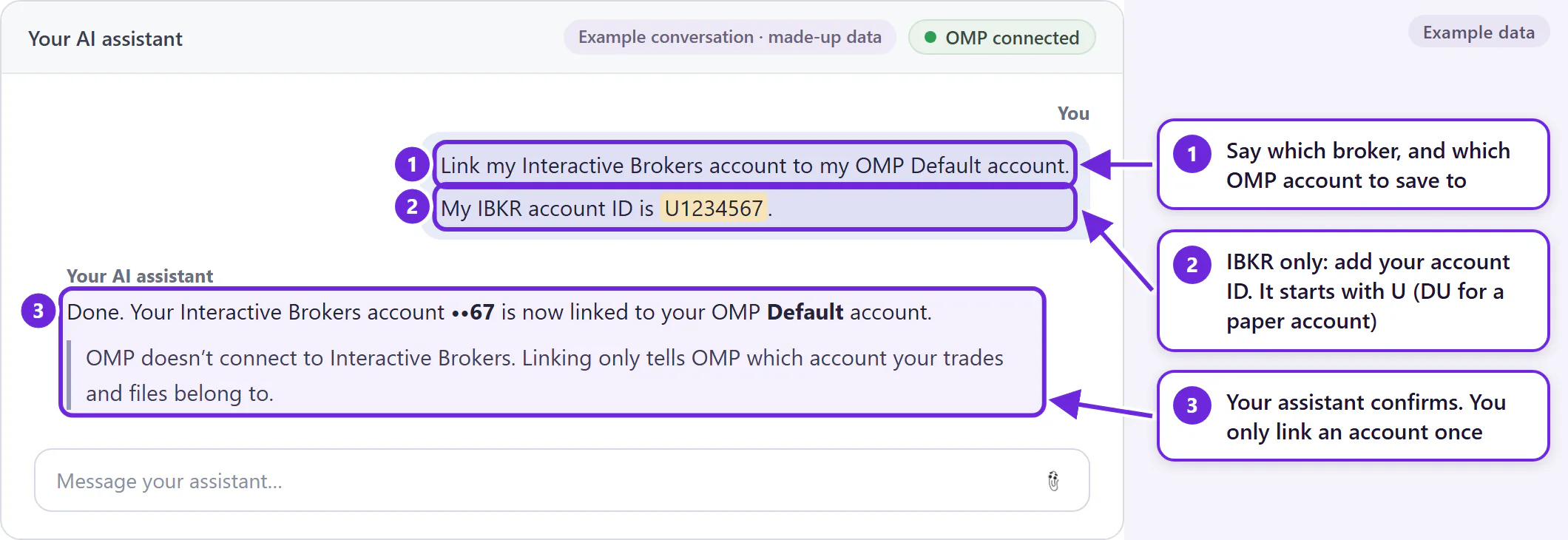
A1. Link your broker account (once)
Tell your assistant which broker, and which OMP account to save to. If you only use one OMP account, that's “Default”.
You could say
“Link my Interactive Brokers account to my OMP Default account. My IBKR account ID is U1234567.”
IBKR users: add your account ID. IBKR's connection doesn't show it, so your assistant can't look it up. It starts with U (or DU for a paper account). Type it exactly as IBKR shows it. U1234567 is only an example.
A2. Ask your assistant to bring in your trades
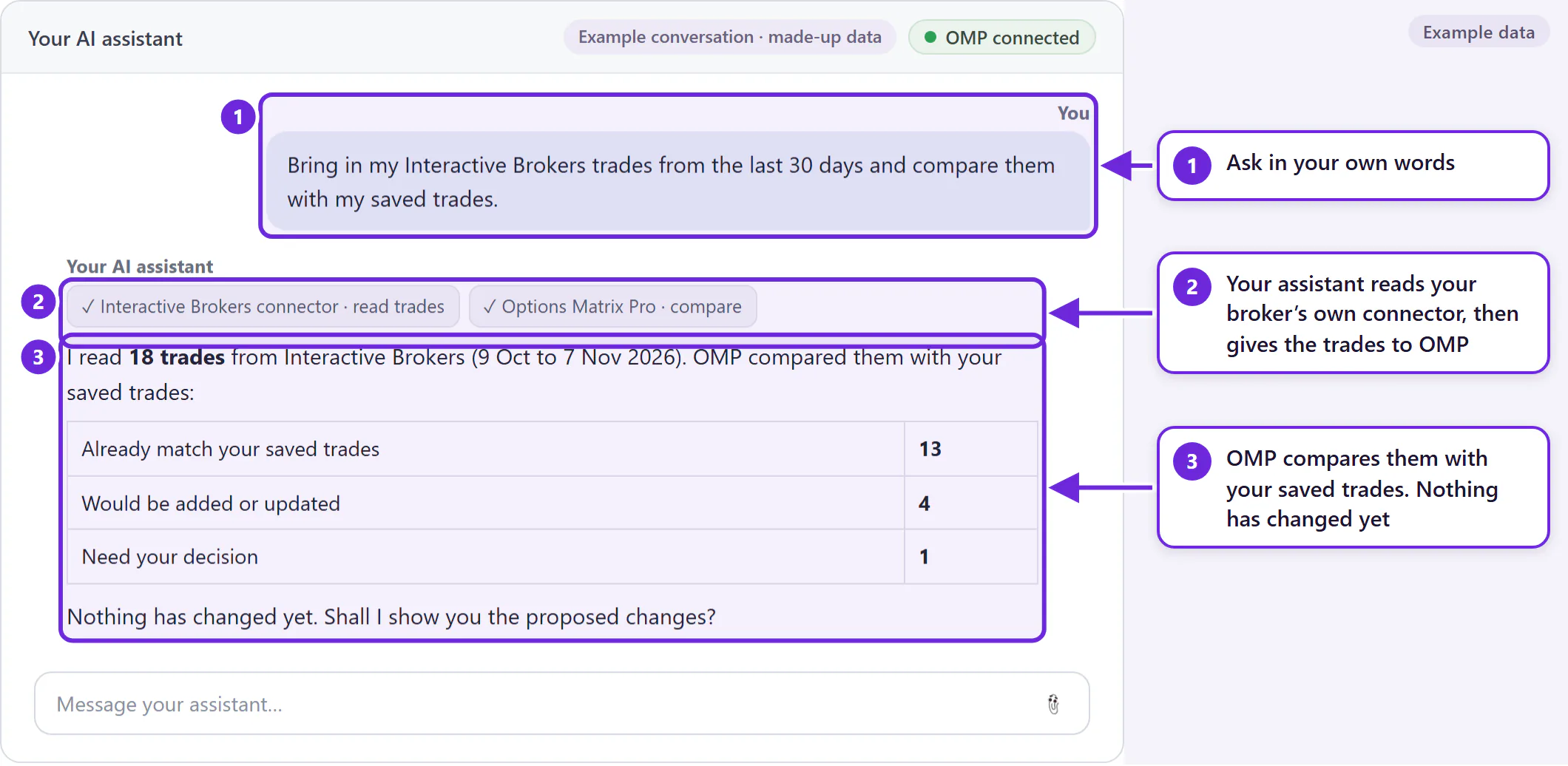
If your broker has its own AI connection (see the broker table), add it to your assistant too. Then ask in your own words:
You could say
“Bring in my Interactive Brokers trades from the last 30 days and compare them with my saved trades.”
No connection for your broker? Attach the export file instead
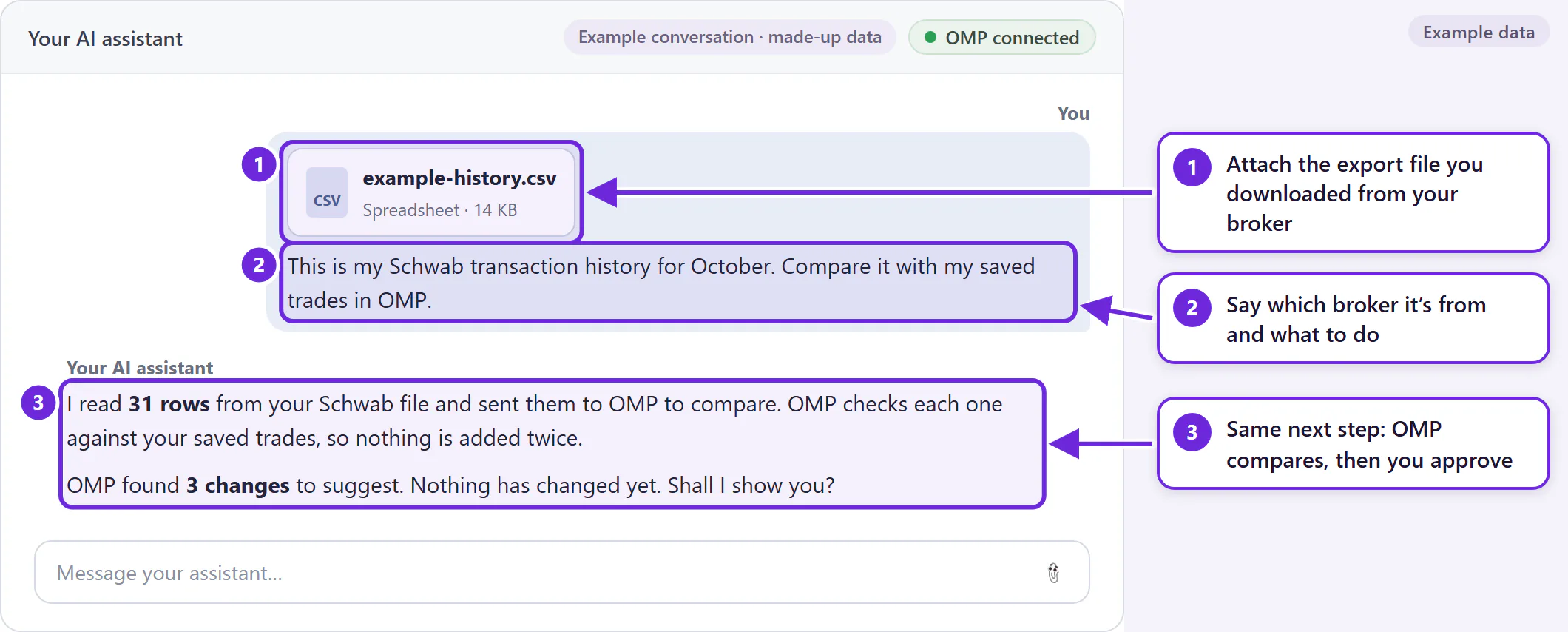
Download your broker's trade history file and attach it in the chat. Say which broker it's from.
You could say
“This is my Schwab transaction history for October. Compare it with my saved trades in OMP.”
A3. Check what OMP would change
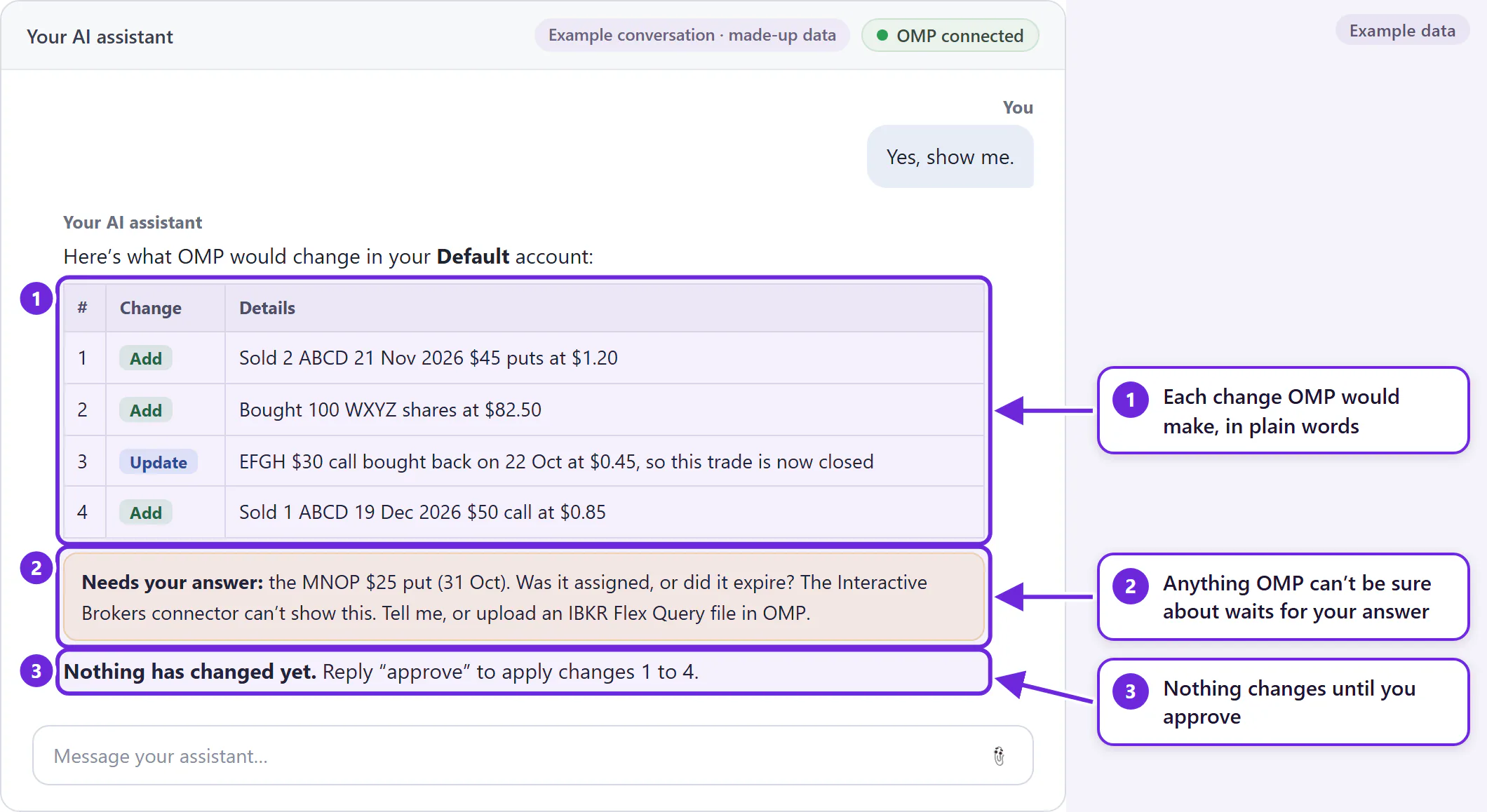
Your assistant lists each change in plain words: trades to add, trades to update, trades now closed. If OMP can't be sure about something, such as whether an option was assigned or expired, it asks you instead of guessing.
A4. Approve
If the list is right, approve it. OMP applies exactly what you were shown, nothing more. If something looks wrong, say so and don't approve. Your assistant can prepare a new list.
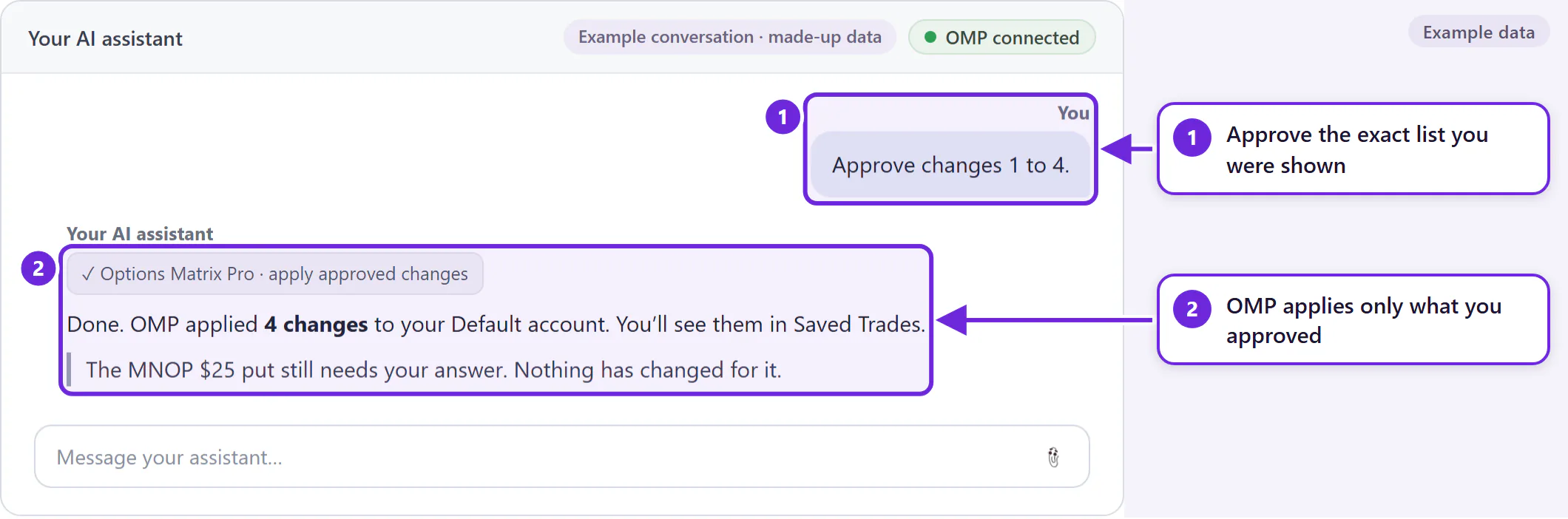
Some assistants also give you a link to the change in OMP, on a page called Review OMP change. You can check it there and click Approve change. Approve soon after the list appears: a proposed change stays ready for 5 minutes. After that, ask your assistant to prepare it again.
Route B: upload your broker file in OMP
For Interactive Brokers (an Activity Flex Query file in XML) and tastytrade (a Transactions file in CSV). Link your account first (step A1). There are four steps.
- Export the file from your broker: IBKR or tastytrade.
- Upload it in OMP, under AI Connections, in Import a broker file. See B2.
- Read the summary OMP shows. See B3.
- Ask your assistant to compare it, then approve. See B4.
B1. Export from Interactive Brokers (IBKR)
You need an Activity Flex Query. You set it up once, then run it whenever you want a new file. The diagrams below are simplified drawings, not IBKR's real screens.
1. Find Flex Queries
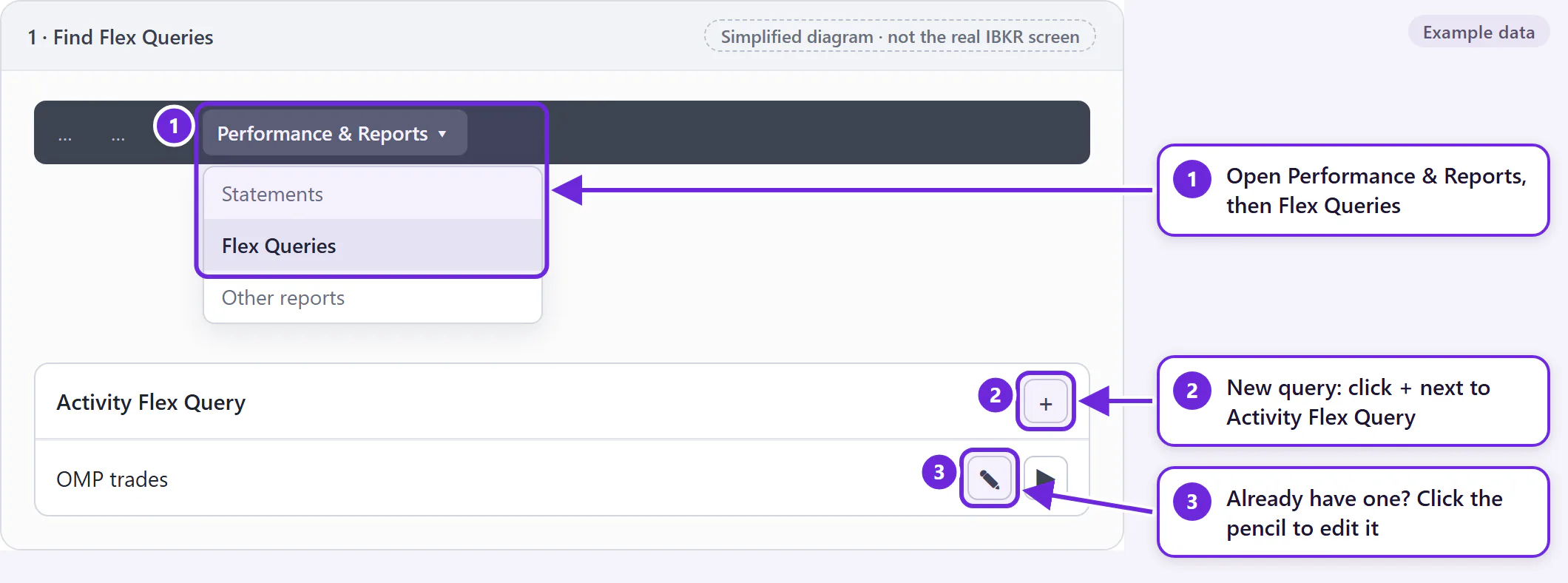
Sign in to the IBKR Client Portal on the web. Open Performance & Reports, then Flex Queries. Next to Activity Flex Query, click + to create a new query, or the pencil to edit one you already have. Give it a name you'll recognise, such as “OMP trades”.
2. Choose the sections
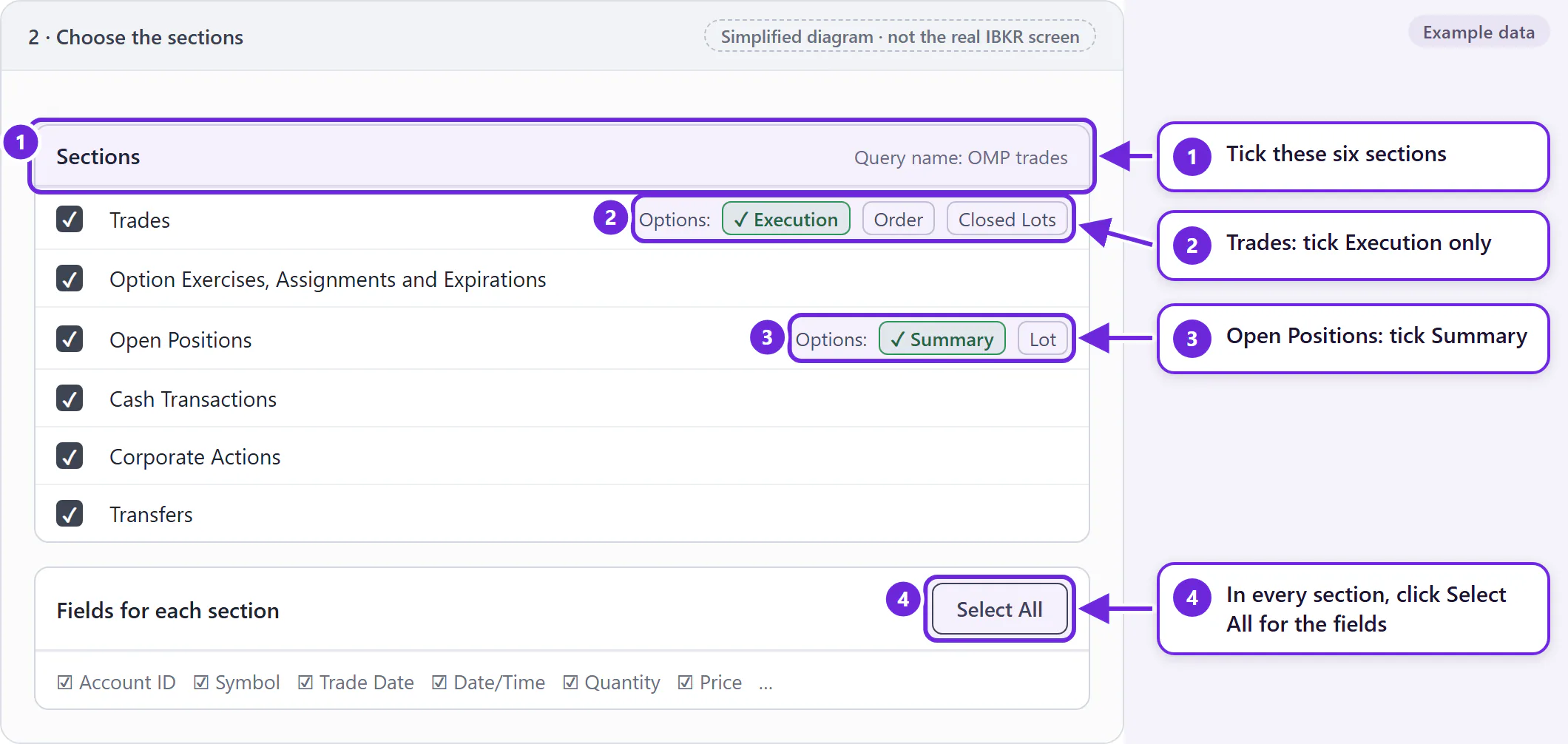
Tick these six sections. In every section, click Select All so all its fields are included.
| Section | Options |
|---|---|
| Trades | Execution only |
| Option Exercises, Assignments and Expirations | All fields |
| Open Positions | Summary |
| Cash Transactions | All fields |
| Corporate Actions | All fields |
| Transfers | All fields |
3. Set the General Configuration
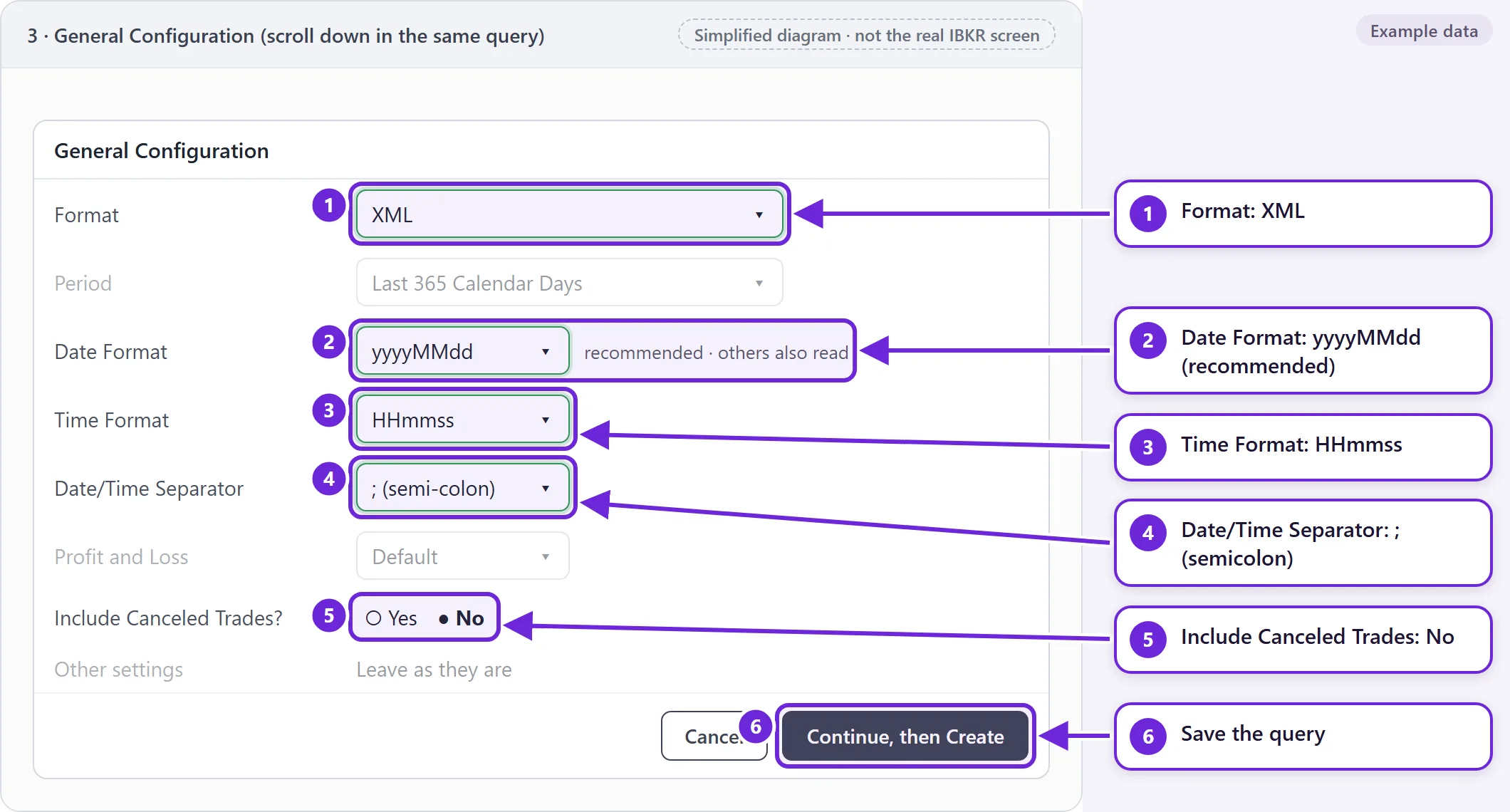
Scroll down to General Configuration in the same query and set these:
| Setting | Set it to |
|---|---|
| Format | XML |
| Date Format | yyyyMMdd |
| Time Format | HHmmss |
| Date/Time Separator | ; (semicolon) |
| Include Canceled Trades | No |
Leave the other settings as they are. Click Continue, then Create (or Save if you're editing).
Most common mistake
Sections missing, or Open Positions not set to Summary
If your query only has Open Positions (and maybe an account summary), OMP sees what you hold today but none of your trades, expiries or assignments. Tick Trades and Option Exercises, Assignments and Expirations as well.
In Open Positions, choose Summary and click Select All. Otherwise IBKR can list a position more than once without saying which row is the total, and OMP holds those rows back.
Already made the query? Click the pencil, fix the sections, save, then run it again and upload the new file.
4. Run it and download the file
In the Flex Queries list, click the run arrow next to your query. Choose the Period (up to 365 days at a time), set Format to XML, and click Run. Save the .xml file it downloads.
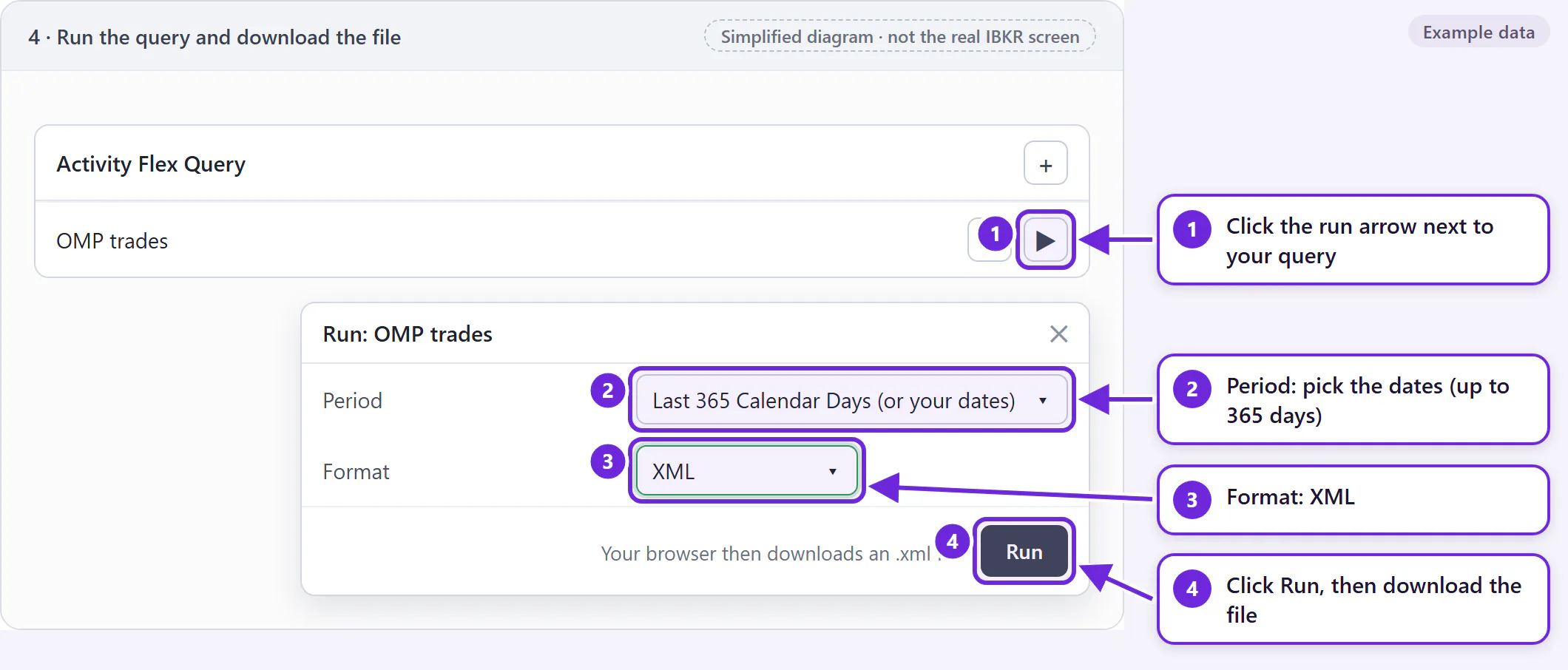
Need more than a year? Run the query once for each year and upload each file. IBKR keeps this year and the four years before it.
B1. Export from tastytrade
- Sign in at my.tastytrade.com, or open the desktop app.
- Open History, then Transactions.
- Choose the account and set the start and end dates.
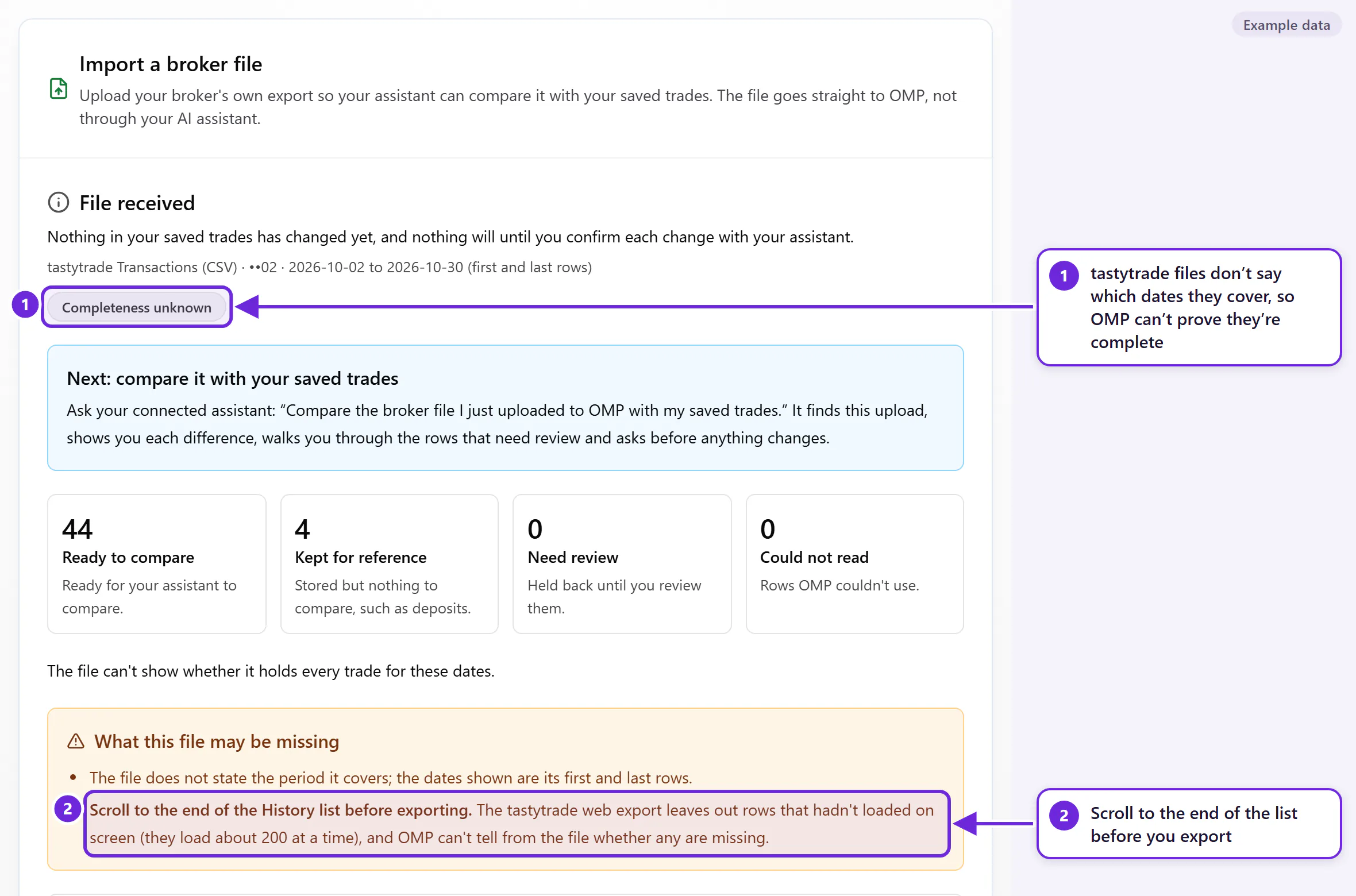
- Scroll to the bottom until every row has loaded. Rows load about 200 at a time, and rows that haven't loaded can be left out of the file.
- Click the CSV icon and save the file.
B2. Upload the file in OMP
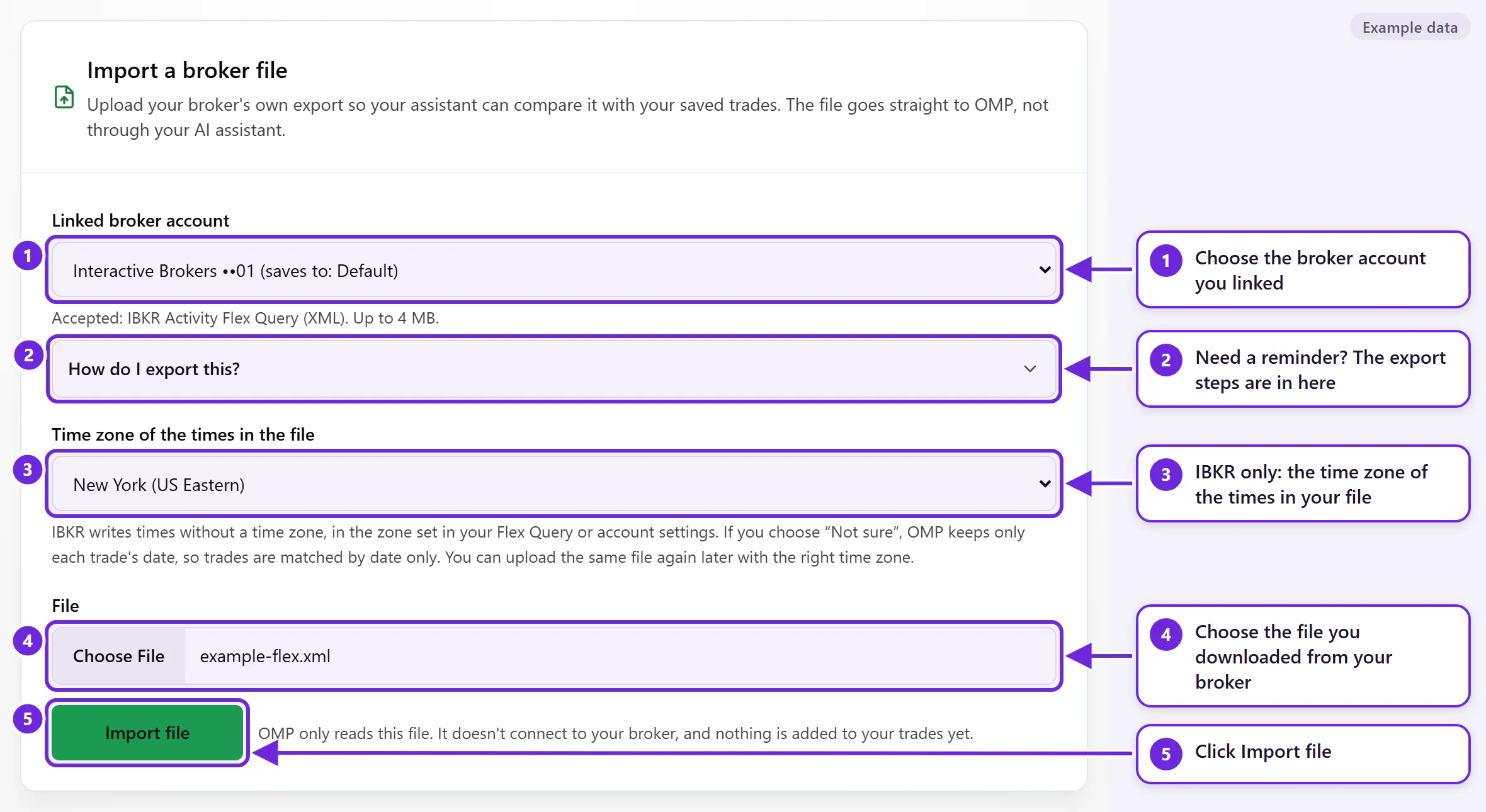
In OMP, open AI Connections from the menu. Scroll down to Import a broker file.
- Linked broker account: choose the account you linked. It shows which OMP account it saves to.
- How do I export this? Open it for a short version of the export steps.
- Time zone of the times in the file (IBKR only): choose the time zone your Flex Query uses. Not sure? Choose “Not sure (use dates only)”. OMP then matches trades by date only, and you can upload the same file again later with the right time zone.
- File: choose the file you downloaded (up to 4 MB).
- Click Import file.
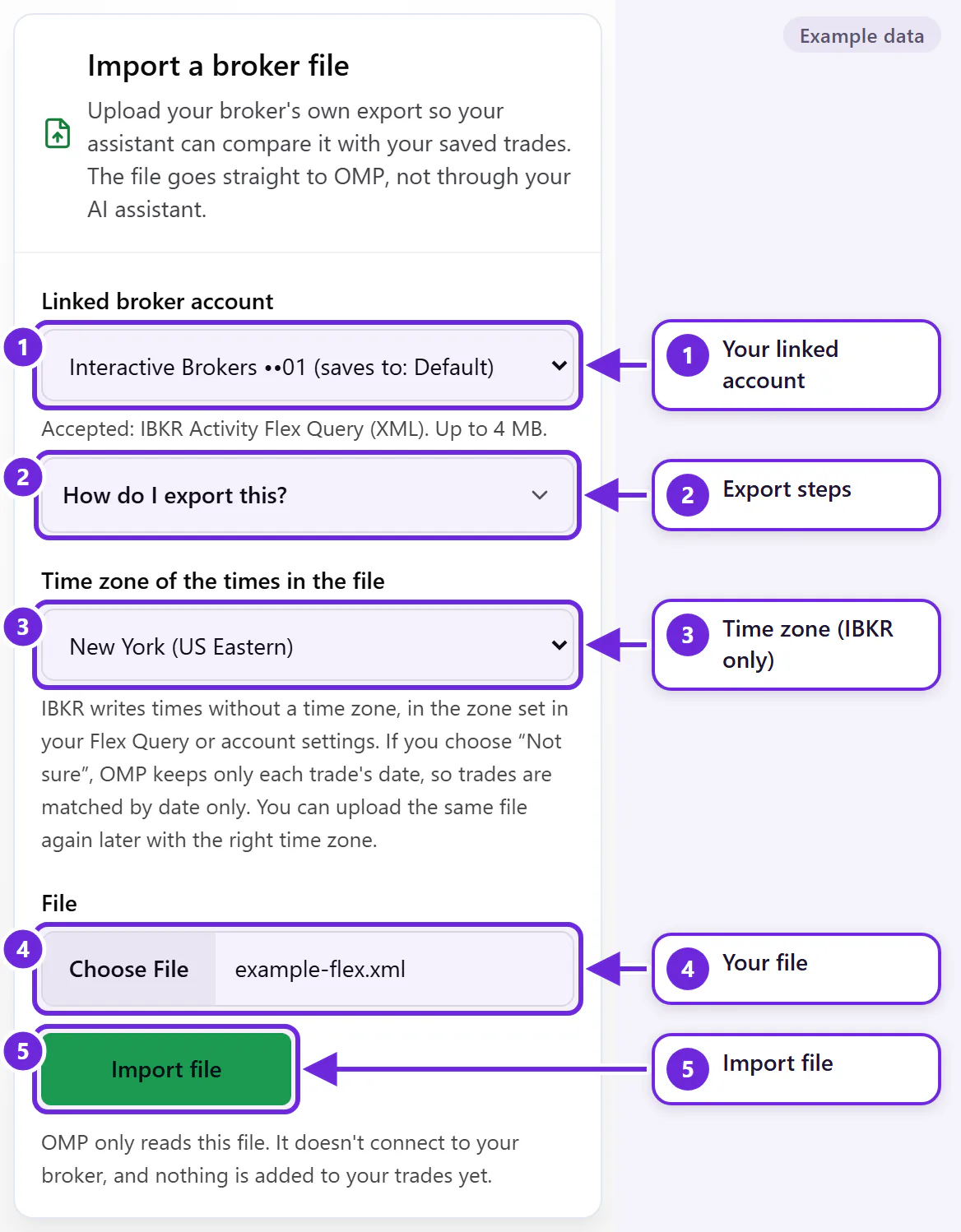
For IBKR, use the full steps on this page, including the General Configuration settings.
B3. Read the summary
OMP reads the file and shows a summary. At this point nothing in your saved trades has changed.
- Complete, Partial or Completeness unknown: whether the file shows it holds every trade for its dates.
- A reminder that nothing has changed yet.
- Your next step: the exact sentence to ask your assistant.
- What OMP found: trades ready to compare, rows kept for reference (like deposits and dividends), rows that need review, and rows OMP couldn't read.
- What this file may be missing: anything to fix in your export, such as a missing section.
- Need review: rows held back until you go through them with your assistant, such as stock splits or shares moved in or out.
- Parts: OMP compares up to 100 trades at a time. Your assistant goes through the parts in order.
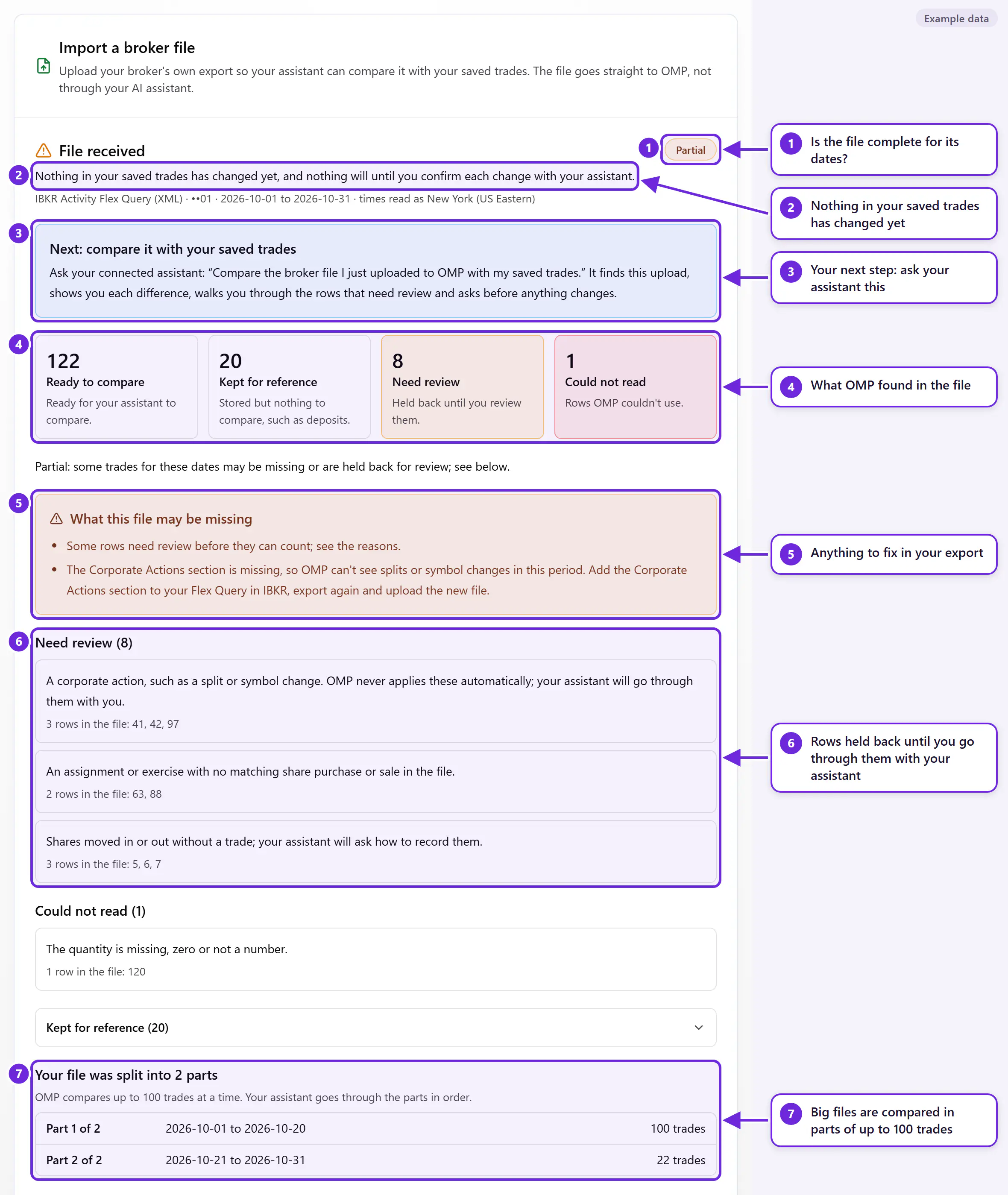
B4. Ask your assistant to compare it, then approve
Go to your AI assistant and ask:
You could say
“Compare the broker file I just uploaded to OMP with my saved trades.”
Your assistant finds your upload, shows you each difference, goes through any rows that need review, and asks before anything changes. It's the same check and approve as Route A, steps A3 and A4.
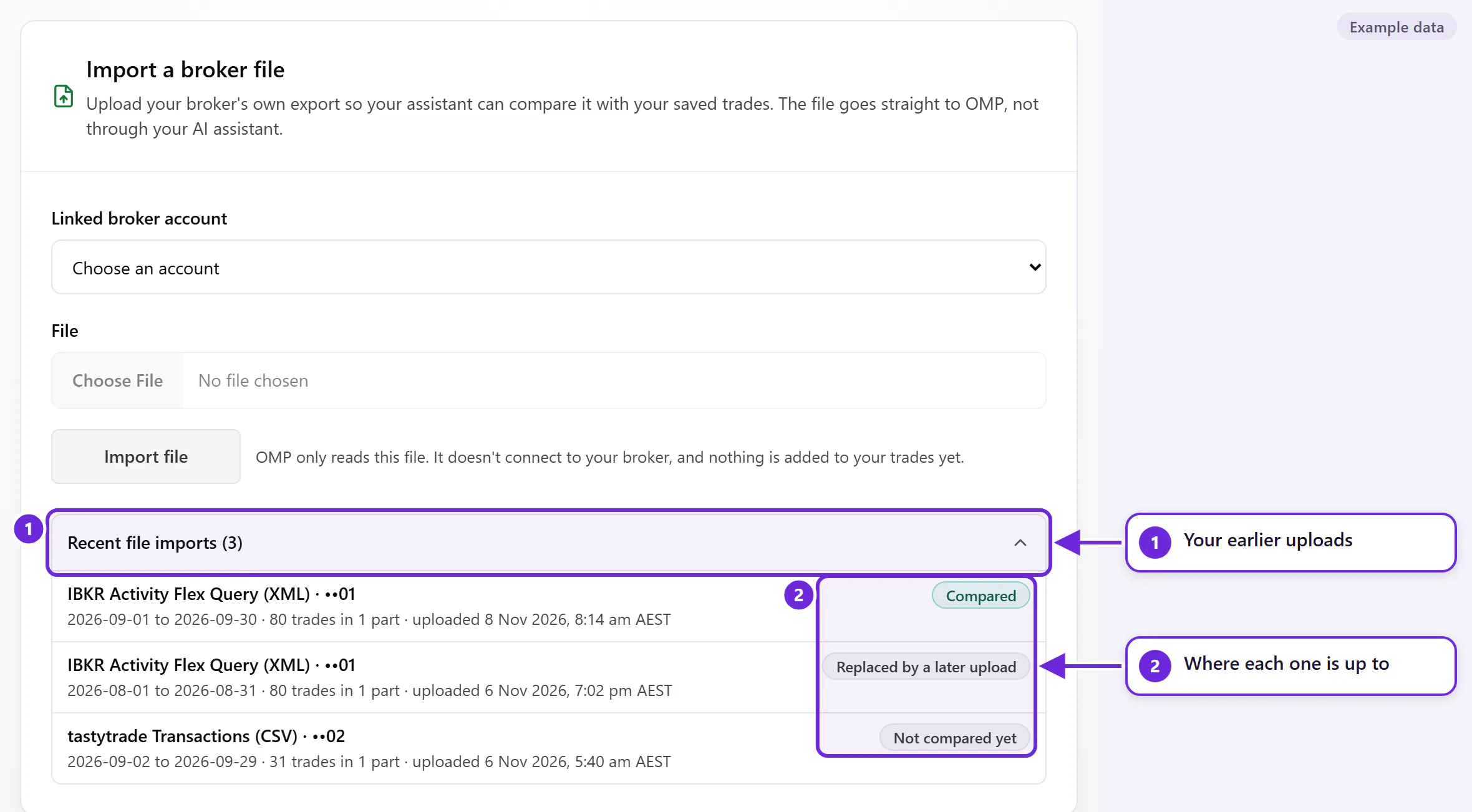
Your broker at a glance
You can link an account at any of these 11 brokers through your AI assistant. “Connection” means the broker's own AI connection, which you add to your assistant yourself.
Interactive Brokers (IBKR)
- Route A: chat with your assistant
- IBKR's own connection for everyday trades. It can't show expiries, assignments or exercises, so add a Flex Query file for those.
- Route B: upload in OMP
- Yes: Activity Flex Query (XML)
tastytrade
- Route A: chat with your assistant
- tastytrade's own connection (you run it yourself), or attach your Transactions CSV.
- Route B: upload in OMP
- Yes: Transactions (CSV)
Alpaca
- Route A: chat with your assistant
- Alpaca's own connection. It includes expiries, assignments and exercises.
- Route B: upload in OMP
- No
Tradier
- Route A: chat with your assistant
- Tradier's own connection. Confirm expiries and assignments in the chat.
- Route B: upload in OMP
- No
Charles Schwab
- Route A: chat with your assistant
- No official connection yet. Attach your transaction history CSV, about a quarter at a time.
- Route B: upload in OMP
- No
Webull
- Route A: chat with your assistant
- Webull's connection shows orders and positions. Confirm expiries and assignments in the chat.
- Route B: upload in OMP
- No
Robinhood
- Route A: chat with your assistant
- Attach your account activity report (CSV) for history. Use Robinhood's connection for current positions.
- Route B: upload in OMP
- No
TradeStation
- Route A: chat with your assistant
- TradeStation's connection for positions and recent trades. Confirm expiries and assignments in the chat.
- Route B: upload in OMP
- No
E*TRADE
- Route A: chat with your assistant
- No connection. Attach your activity CSV, about six months at a time.
- Route B: upload in OMP
- No
Public
- Route A: chat with your assistant
- Public's own connection. Confirm expiries and assignments in the chat. Public has no file you can attach.
- Route B: upload in OMP
- No
Fidelity
- Route A: chat with your assistant
- No connection. Attach your Activity & Orders history CSV, about a quarter at a time.
- Route B: upload in OMP
- No
Based on what each broker offered on 8 November 2026. Brokers change their tools often. Ask your assistant “What does OMP recommend for my broker?” for the latest advice.
Questions
What if I upload the same file twice?
Nothing new is added. OMP recognises the file and shows the results from your first upload.
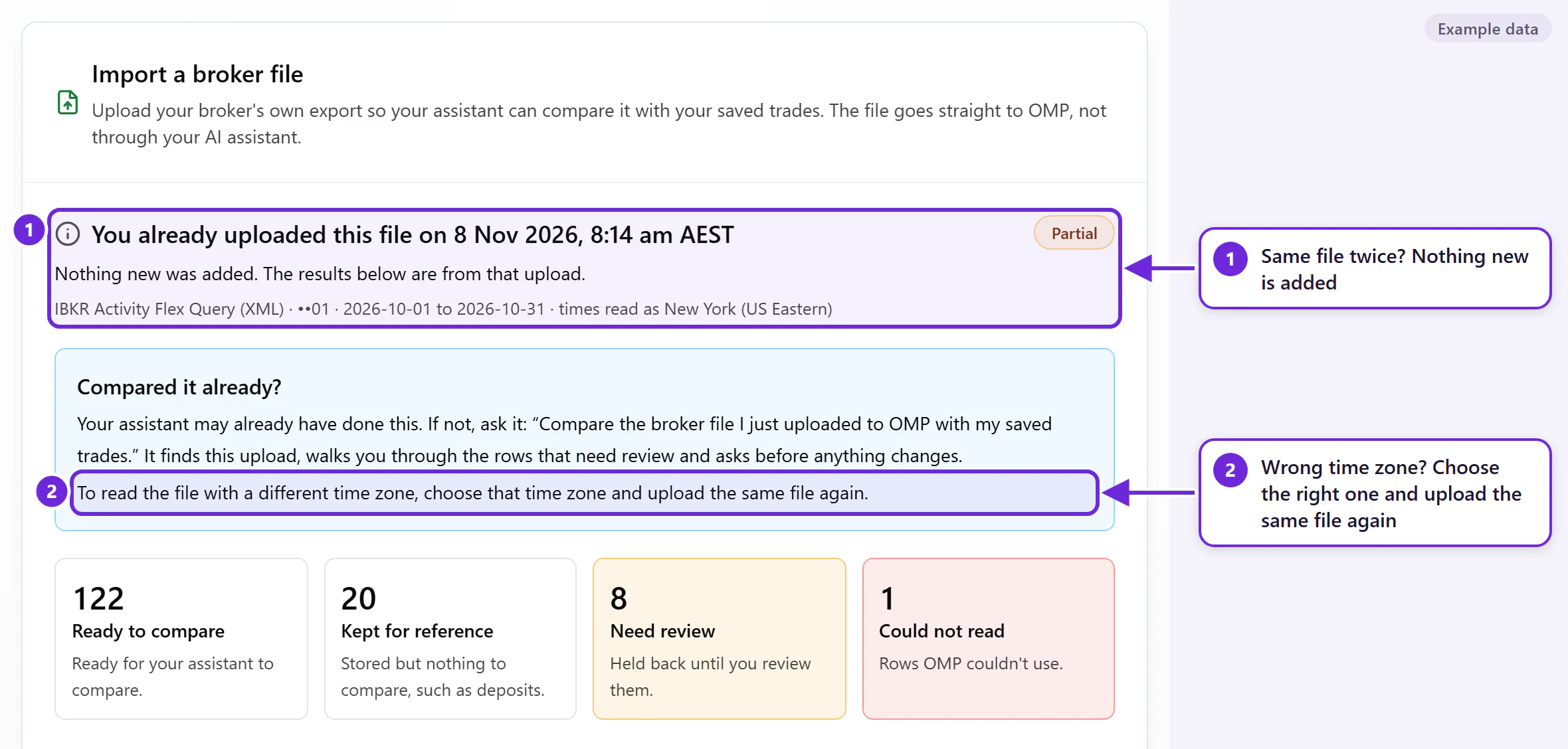
In the chat, OMP also checks each trade against your saved trades, so the same trade isn't added twice. With IBKR, if you upload a Flex Query file, don't also ask your assistant to bring in the same dates from IBKR's connection.
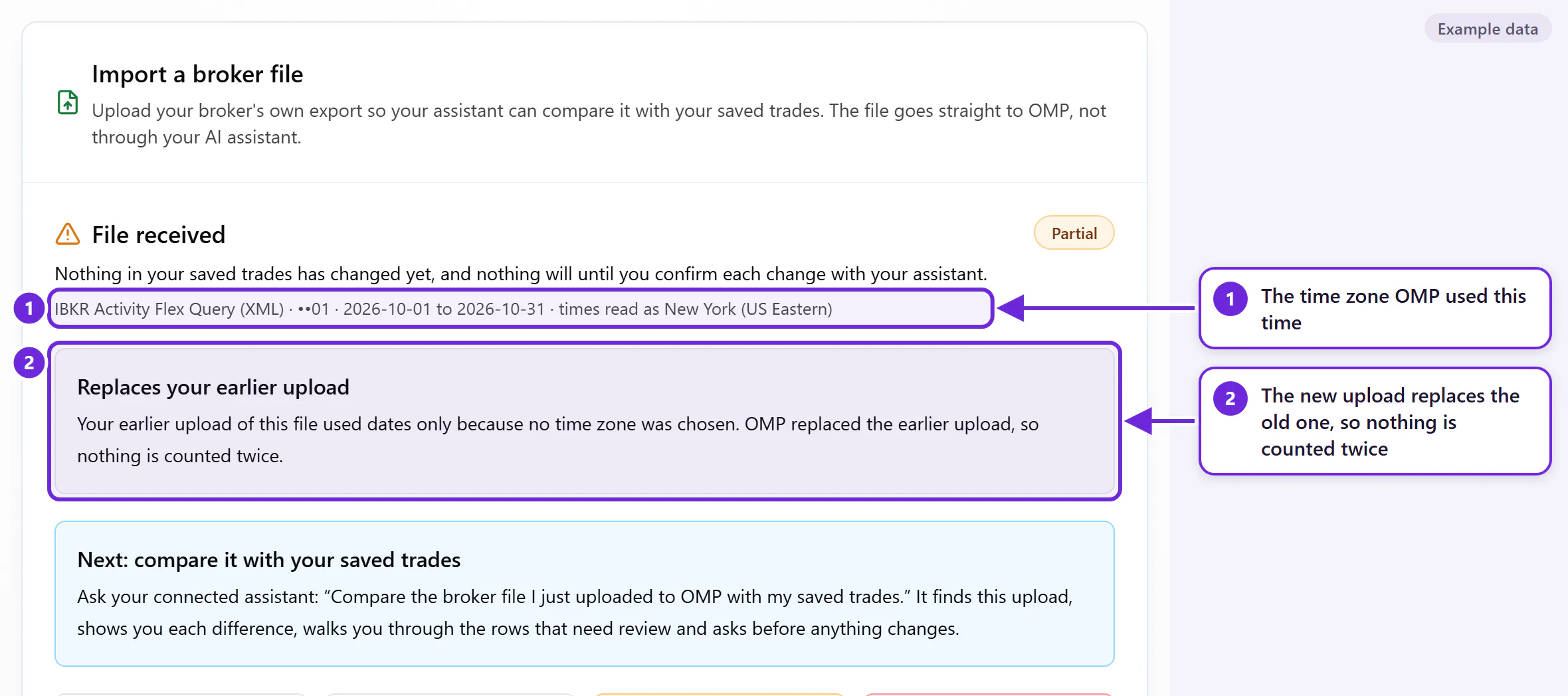
I chose the wrong time zone for my IBKR file. What now?
Choose the right time zone and upload the same file again. The new upload replaces the old one, so nothing is counted twice.
Why are some rows “held back” or “need review”?
OMP holds back rows it can't safely apply on its own. Examples: stock splits and symbol changes, shares moved in or out without a trade, or an assignment with no matching share purchase. Your assistant goes through each one with you. Nothing is applied until you approve.
“Kept for reference” rows, like deposits, dividends and interest, are stored but don't change your trades.
The summary says “Partial”. Is something wrong?
Not necessarily. “Partial” means some trades for those dates may be missing, or are held back for review. Read What this file may be missing. If it says a section is missing, add that section to your Flex Query, run it again and upload the new file.
What date format should my file use?
Any of the common ones. OMP works out the date format from the file itself, including day/month/year (common in Australia and the UK), month/day/year and year-month-day. The summary tells you how it read the dates.
If every date in the file could be read two ways (for example 07/11/2025 could be 7 November or 11 July), OMP asks you which it is. It never guesses. If you pick wrong, upload the same file again with the other answer; the new upload replaces the old one.
For IBKR we still recommend yyyyMMdd (see the General Configuration settings), because it can never be read two ways.
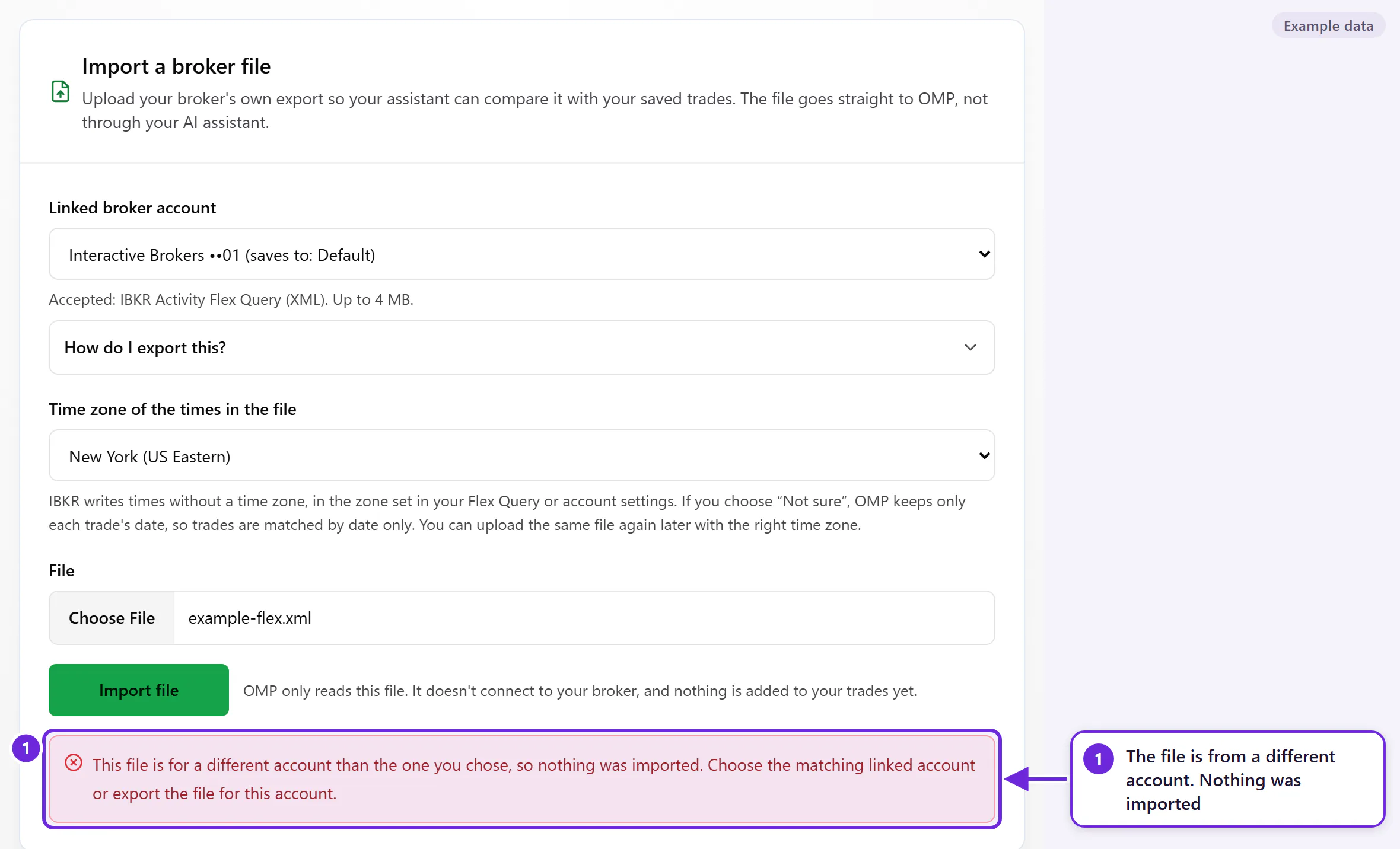
It says the file is for a different account.
The file came from a different broker account than the one you chose, so nothing was imported. Choose the matching linked account, or export the file from the right account. For IBKR, OMP checks the file against the account ID you gave when you linked it.
My file is too big.
Files can be up to 4 MB. Export a shorter date range and upload each part.
Who sees my file? Is it private?
When you upload in OMP, the file goes straight to OMP, not through your AI assistant. OMP only reads it. It doesn't connect to your broker.
When you attach a file in the chat, your AI assistant reads it first and then passes the trades to OMP. Your assistant's own privacy terms apply to what you share in the chat.
OMP never asks for your broker password, never places trades and never moves money.
I approved too late and the change didn't apply.
A proposed change stays ready for 5 minutes. If it has expired, or the trade changed in the meantime, ask your assistant to prepare the change again and approve the new list.
All screenshots and conversations in this guide use made-up example data. The IBKR pictures are simplified diagrams, not IBKR's real screens. Your AI assistant's screen will look different from the example conversations.
Options Matrix Pro doesn't connect to your broker account, place broker orders or move money.